1 harbor
Tip
搭建自己的仓库
1.1 docker-compose 方式
Generate a Certificate Authority Certificate
Generate a Server Certificate
# Generate a private key.
openssl genrsa -out hb.6o6.com.key 4096
# Generate a certificate signing request (CSR).
openssl req -sha512 -new \
    -subj "/C=CN/ST=Beijing/L=Beijing/O=example/OU=Personal/CN=hb.xx.com" \
    -key hb.6o6.com.key \
    -out hb.6o6.com.csr

# Generate an x509 v3 extension file
cat > v3.ext <<-EOF
authorityKeyIdentifier=keyid,issuer
basicConstraints=CA:FALSE
keyUsage = digitalSignature, nonRepudiation, keyEncipherment, dataEncipherment
extendedKeyUsage = serverAuth
subjectAltName = @alt_names

[alt_names]
DNS.1=hb.6o6.com
DNS.2=hb.6o6
DNS.3=hostname
EOF

openssl x509 -req -sha512 -days 3650 \
    -extfile v3.ext \
    -CA ca.crt -CAkey ca.key -CAcreateserial \
    -in hb.6o6.com.csr \
    -out hb.6o6.com.crt
Provide the Certificates to Harbor and Docker
mkdir -p /hb_data/cert
cp hb.6o6.com.crt /hb_data/cert/
cp hb.6o6.com.key /hb_data/cert/

openssl x509 -inform PEM -in hb.6o6.com.crt -out hb.6o6.com.cert
mkdir -p /etc/docker/certs.d/hb.6o6.com/
cp hb.6o6.com.cert /etc/docker/certs.d/hb.6o6.com/
cp hb.6o6.com.key /etc/docker/certs.d/hb.6o6.com/
cp ca.crt /etc/docker/certs.d/hb.6o6.com/

systemctl restart docker
# 下载online版, 自己pull 镜像
wget https://github.com/goharbor/harbor/releases/download/v2.8.2/harbor-online-installer-v2.8.2.tgz
tar xf harbor-online-installer-v2.8.2.tgz
cd harbor
cp harbor.yml.tmpl harbor.yml
sed -i 's/reg.mydomain.com$/hb.6o6.com/' harbor.yml
sed -i 's#certificate: /your/certificate/path#certificate: /etc/docker/certs.d/hb.6o6.com/hb.6o6.com.cert#' harbor.yml
sed -i 's#private_key: /your/private/key/path#private_key: /etc/docker/certs.d/hb.6o6.com/hb.6o6.com.key#' harbor.yml
# 页面密码
sed -i 's/harbor_admin_password: Harbor12345/harbor_admin_password: hb123/' harbor.yml
# db密码
sed -i 's/password: root123/password: hb123/' harbor.yml
sed -i 's#data_volume: /data#data_volume: /hb_data#' harbor.yml

./install.sh

# 所有节点上
echo >>/etc/hosts <<EOF
192.168.1.105 hb.6o6.com
EOF
浏览器访问 自己的harbor 用户是admin ### helm 方式安装 ### 使用
- 新建项目, 设置一个名称xyz, 访问级别 不要点选, 这样就表示私有, -1表示容量不限.
- 点击新建的项目名xyz–>镜像仓库–>推送命令
在我们的k8s 节点上操作
1.2 k8s使用私有镜像仓库
Warning
创建的secret需要和你创建的pod在同一个namespace
1.2.1 docker作为runtime
- 创建secret
- 查看生成的secret
kubectl get secret regcred --output=yaml
kubectl get secret regcred --output="jsonpath={.data.\.dockerconfigjson}" | base64 --decode- 配置docker
- 重启docker
- 修改pod的yaml文件
1.2.2 containerd
2 aliyun 镜像仓库
Tip
我们可以利用它来构建需要fq才能快速构建的镜像
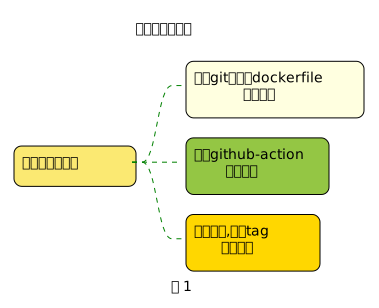
2.1 基础设置
打开阿里云镜像仓库
- 创建命名空间
- 设置访问凭证
2.2 通过关联的git仓库的dockerfile
2.3 通过独立github仓库的action
- fork nfs-subdir-external-provisioner
- github forked的 仓库 激活action
git clone https://github.com/your-fork-user/nfs-subdir-external-provisioner
git co -b test-br    nfs-subdir-external-provisioner-4.0.18
# 修改部分数据
vim .github/workflows/release.yml

on:
  push:
    branches:
      - 'test-br'  #(1)
jobs:
  docker:
    runs-on: ubuntu-latest
    steps:
      -
        name: Prepare
        id: prep
        name: Login to the container registry
        if: github.event_name != 'pull_request'
        uses: docker/login-action@v1
        with:
          registry: registry.cn-hangzhou.aliyuncs.com #(2)
          username: ${{ secrets.REGISTRY_USERNAME }} #(3)
          password: ${{ secrets.REGISTRY_TOKEN }}
      -
        name: Build and push

        with:
          platforms: linux/amd64 #(4)
          tags: 'registry.cn-hangzhou.aliyuncs.com/your-namespace/nfs-subdir-external-provisioner:4.0.18' #(5)


git ci -a -m 'test'
git push -u origin test-br- 改成你的分支名
- 阿里云镜像仓库
- github forked 对应仓库设置secret
- 点击New repository secret按钮创建
- name设置为 REGISTRY_USERNAME , 内容secret 设置为你的 阿里云镜像仓库 登录帐号
- name设置为 REGISTRY_TOKEN, 内容secret 设置为你的 阿里云镜像仓库 登录凭证
- 先弄成一个
- 我这里为了测试先直接写死 阿里云镜像url tag. 阿里云镜像命名空间必须存在